







This walkthrough covers the second set of Enhancement controls in Topaz Video: Add noise, Recover detail, Focus fix, and Grain. These settings are available across of the AI models in Topaz Video and give you fine-grained control over the look and quality of your enhanced output.
Note: For the above video's section on grain, newer versions of Topaz Video have updated the Grain interface. Please refer to this documentation for up-to-date information.
Add Noise
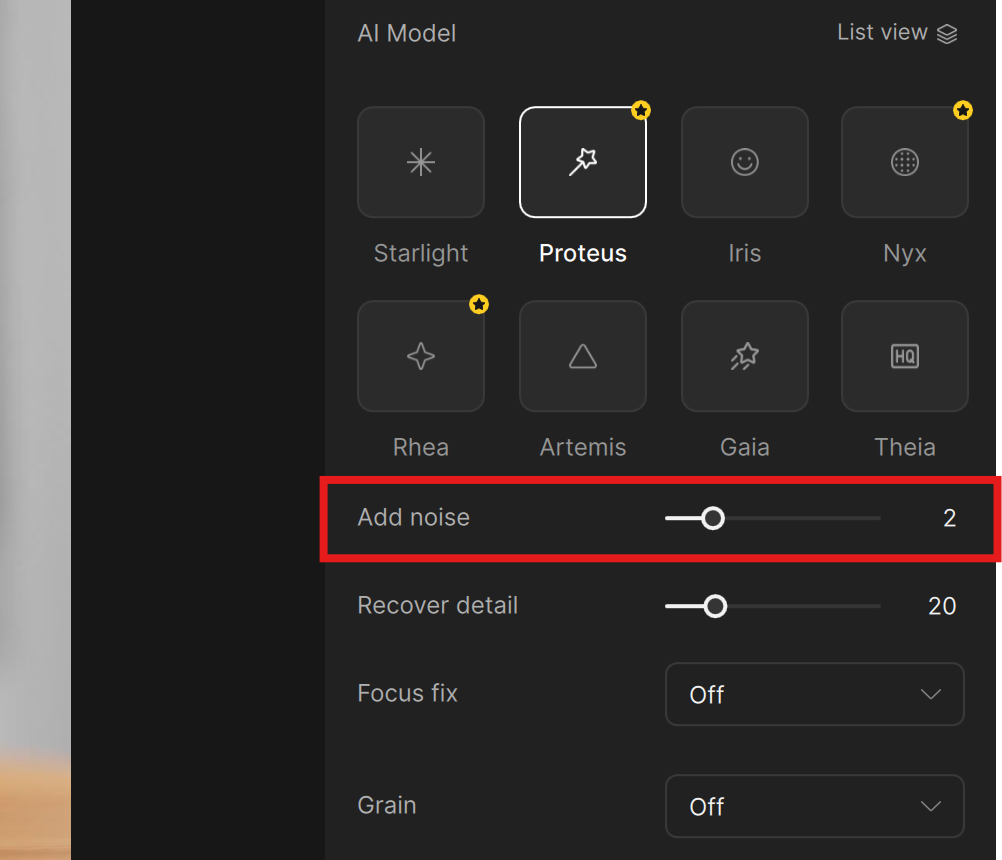
The Add noise slider (default: 0) introduces a subtle layer of fine particulates into your output. This might seem counterintuitive — why add noise to a video you're trying to clean up? — but it serves an important purpose.
AI enhancement can sometimes produce results that look overly smooth or "plastic," particularly in areas with gradual tonal transitions like skies or walls. When you have a large gradient in your footage, you may also see banding — visible lines where one shade transitions to the next. Adding a small amount of noise helps break up those smooth areas and banding artifacts, giving the image a more natural, organic feel.
This works in a similar way to the Grain feature (covered below), but noise is a simpler, lighter-weight option when you just need to take the edge off an overly processed look.
Recover Detail
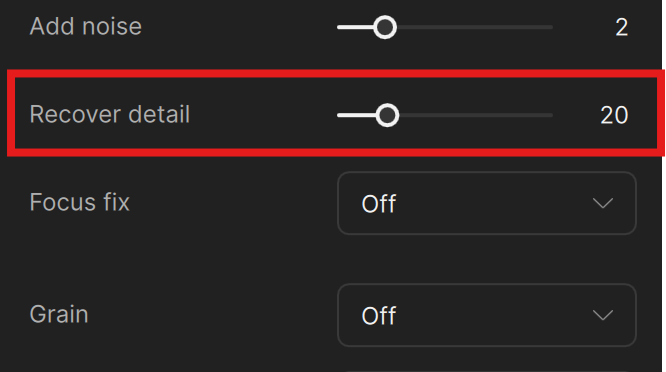
The Recover detail slider (default: 20) controls how aggressively Topaz Video tries to bring back detail from your original source footage.
It's important to understand what this does and doesn't do. Recover detail is not a simple blend or mix that brings your original source back at 100%. Instead, it acts as a threshold for how hard the AI looks for details to recover. At higher values, the AI is more aggressive about finding and restoring fine details from the source. At zero, it doesn't mean the AI fully ignores your source — it simply dials back the detail recovery effort.
A good rule of thumb is to keep this around 10–20 for most footage. At that range, you get a subtle boost in fine detail without much risk of the AI picking up undesired artifacts — such as compression noise that it might misinterpret as detail worth preserving. If you're noticing that your enhanced output is losing fine texture or small details, try increasing this slider to bring that detail back.
Focus Fix
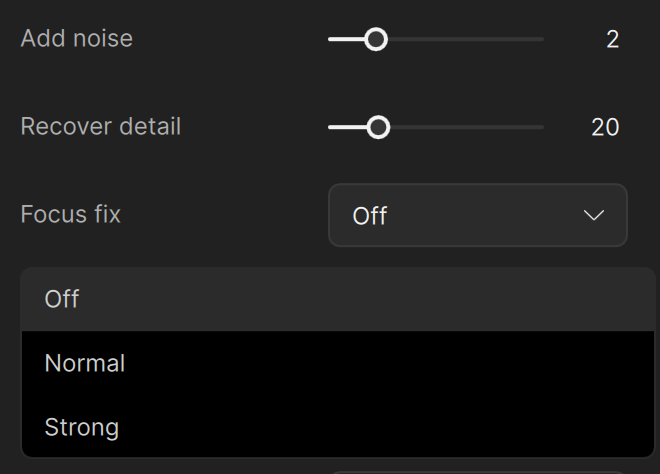
The Focus fix setting helps correct footage that's slightly out of focus. It has three modes: Off, Normal, and Strong.
When you enable Focus fix, Topaz Video will first downscale the video and then upscale it back to the original resolution, using AI to sharpen and recover the areas that were soft. A warning note appears in the panel explaining that this mode is specifically designed for improving HD and UHD footage with slightly missed focus, and is not recommended for other Enhancement use cases.
To demonstrate Focus fix, consider a clip where the subject — perhaps a macro shot of a crustacean or insect — is just slightly out of focus. Switching Focus fix to Normal tells the AI to locate and sharpen the soft areas. The result is a targeted sharpening effect that brings the subject into better clarity.
Switching to Strong applies a much more aggressive correction. In many cases, Strong is too heavy-handed and can introduce artifacts or an over-sharpened look. For most slightly-out-of-focus footage, Normal tends to be the better choice, recovering lost details without overcooking the image.
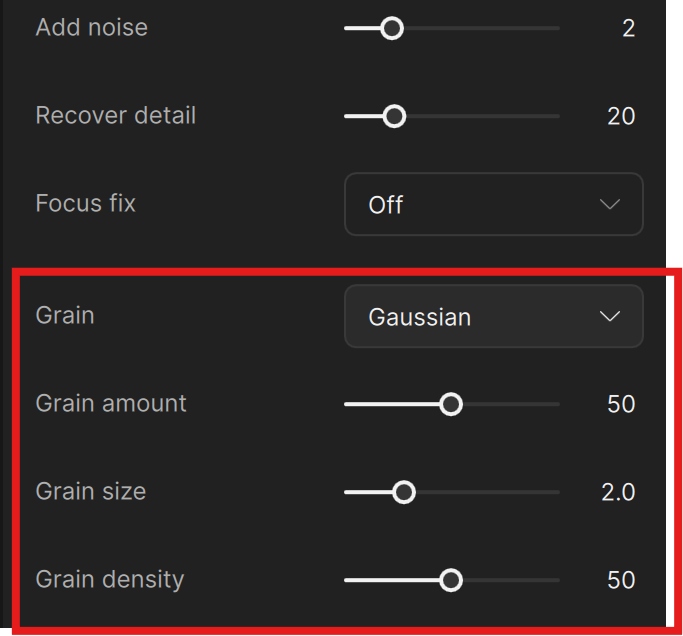
The Grain section lets you apply film-like grain to your enhanced output. Selecting the Grain dropdown reveals three different types of Grain that can be applied:
- Gaussian: This is grain with color.
- Grey: Similar to Gaussian, however there is no saturation.
- Silver Rich: This is a more organic grain, something a little more akin to older film stock. The parameters don’t need to be as aggressive. More conservative adjustments are recommended from the default settings.
Selecting one of the three Grain types will reveal the following sliders:
- Grain amount - controls the overall quantity of grain added
- Grain size - controls the size of the grain added.
- Grain density - controls the frequency of the grain added.
Grain serves a similar purpose to Add noise — it breaks up areas that might look overly smooth after AI processing — but grain gives you more artistic control. You can dial in a specific look that feels more like analog film stock rather than digital noise.
For example, setting grain amount to around 10 and grain size to 3 produces a clearly visible, larger-scale grain texture that has a distinctly filmic quality. Pulling it back to amount 5 and size 2 gives a more subtle, understated effect. Experiment with these values to find the right balance for your project.


