







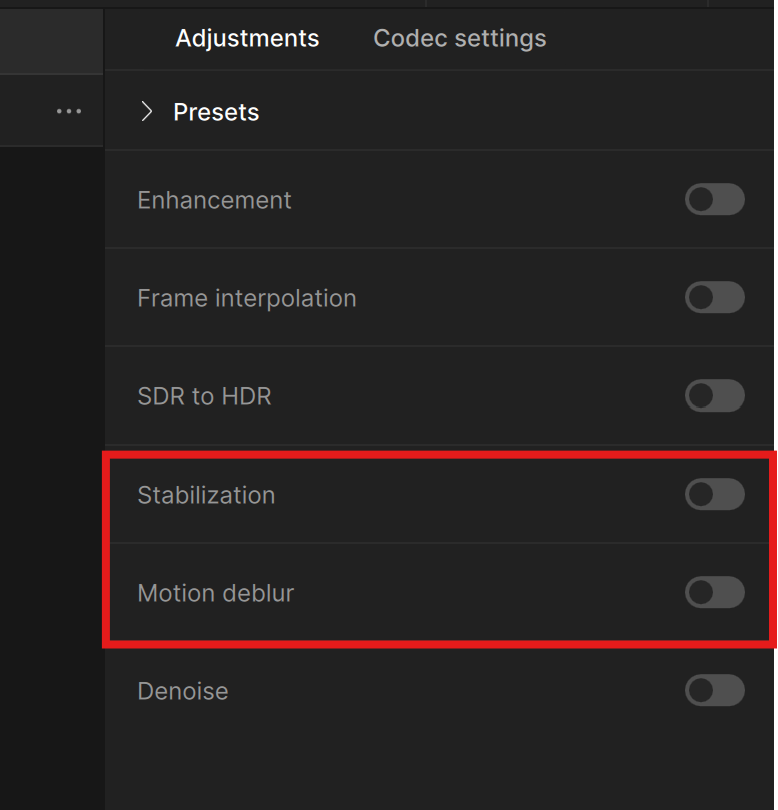
This walkthrough covers two complementary filters in Topaz Video that address camera movement problems: Stabilization for removing unwanted shake and jitter, and Motion Deblur for reducing the blur caused by fast motion. Both are found towards the bottom of the Adjustments sidebar on the right side of your Topaz Video UI.
What does the Stabilization filter do in Topaz Video?
The Stabilization filter improves video quality by removing unwanted camera shakes and jitters caused by hand movement and unintentional panning. It works by moving and rotating the original frames to make subjects visibly stable from frame to frame.
A few things to keep in mind: input and output files will not match pixel to pixel when using this filter, and increasing the stabilization strength will either introduce more edge artifacts (in Full Frame mode) or result in a more cropped output (in Auto-Crop mode).

What is Full Frame mode in Topaz Video?
Full Frame mode fills the blank spaces that appear at the edges of the video — caused by the frame shifting to compensate for shake — using frame interpolation and deep learning. This method preserves the original resolution, but may result in some blurriness or artifacts along the edges where the AI has generated fill content.
What is Auto Crop mode in Topaz Video?
Auto Crop mode takes a different approach: instead of filling the blank edges, it crops them out entirely. The result is an image that is always sharp with no edge artifacts, but the output may have a reduced resolution and frame size. The amount of cropping depends on how much camera shake is being stabilized — more shake means more of the original frame gets removed.
When to use Full Frame mode vs. Auto Crop mode?
The practical difference comes down to what you're willing to trade. Full Frame keeps your resolution intact but may show AI-generated edges that can look soft or contain artifacts. Auto Crop guarantees clean edges but sacrifices frame size. For footage with mild shake, Full Frame usually works well. For heavily shaky footage, Auto Crop tends to produce cleaner results since there's more edge area that would need to be filled.
What is Rolling Shutter Correction?
The Stabilization section includes a Rolling Shutter Correction toggle. This reduces the wobbly, jello-like distortion that occurs when the camera moves too fast — a common artifact with CMOS sensors that scan the image line by line rather than capturing the entire frame at once. The distortion manifests as skewed or stretched subjects, particularly visible on vertical lines and fast-moving objects.
How can I Reduce Jittery Motions?
This toggle corrects parallax distortion and tilting motion by running Chronos Fast for each interpolated pass. This produces smoother stabilization results, but comes with a significant tradeoff: additional passes will substantially increase processing time. Use this when the standard stabilization still leaves visible jitter or parallax artifacts in the output.
How do I use Motion Deblur in Topaz Video?
The Motion Deblur filter reduces blurring caused by objects or the camera moving quickly. Unlike sharpening — which increases edge contrast to create the appearance of more detail — Motion Deblur actually removes the blur itself, recovering genuine detail that was smeared across frames during capture.
This filter is built with a wide range of circumstances in mind. It works well on footage where the camera is in motion (such as a bumpy vehicle-mounted shot or handheld phone footage with lots of movement), footage where the camera is tracking a fast-moving subject (such as an animal in motion), and general footage affected by blur from panning, rotation, or zoom.
What is the Themis AI model in Topaz Video?
Themis is the dedicated AI model for Motion Deblur. It increases perceived sharpness and detail by identifying and removing motion blur rather than simply boosting edge contrast. Themis is designed to handle blur caused by three types of camera movement: panning, rotation, and zoom.
How can I apply Motion Deblur?
Motion Deblur is located directly below Stabilization in the Adjustments sidebar. Toggle it on to reveal the AI model dropdown, which shows Themis as the only available model. There are no additional sliders, strength controls, or parameters to configure — Themis analyzes each frame and applies deblurring automatically.
The simplicity is by design. As demonstrated in the tutorial, the workflow is straightforward: if your footage doesn't have much camera movement, Motion Deblur may not be necessary. But for clips with significant movement — particularly handheld phone footage — simply enabling the toggle and rendering produces noticeably sharper results with more visible detail.
Previewing Motion Deblur
To evaluate the effect, set in and out points on the timeline to select a representative section of your footage, then use the "Render In → Out" button to render just that portion. This lets you compare before and after without processing the entire clip. The before/after comparison typically shows a clearly sharper image with more defined details, particularly in areas with fine structure like buildings, text, or foliage.
How should I use Stabilization and Motion Deblur together in Topaz Video?
These two filters address related but distinct problems. Stabilization corrects the position of frames to remove shake, while Motion Deblur corrects the content of frames to remove blur. Shaky handheld footage often suffers from both issues simultaneously — the camera is moving erratically (causing shake) and the shutter is capturing that movement as blur within each frame.
For footage that has both problems, applying Stabilization first to lock down the framing and then Motion Deblur to clean up the per-frame blur is a logical workflow. Keep in mind that stacking multiple filters increases processing time and system demands.


