






Topaz Image Web uses a dedicated AI model to fix and magnify blurry text within any image, preserving fine detail like logos, symbols, and typography that other upscaling tools routinely destroy. Here's how you can take advantage of of it within your own workflow.
How enhancing text in images works
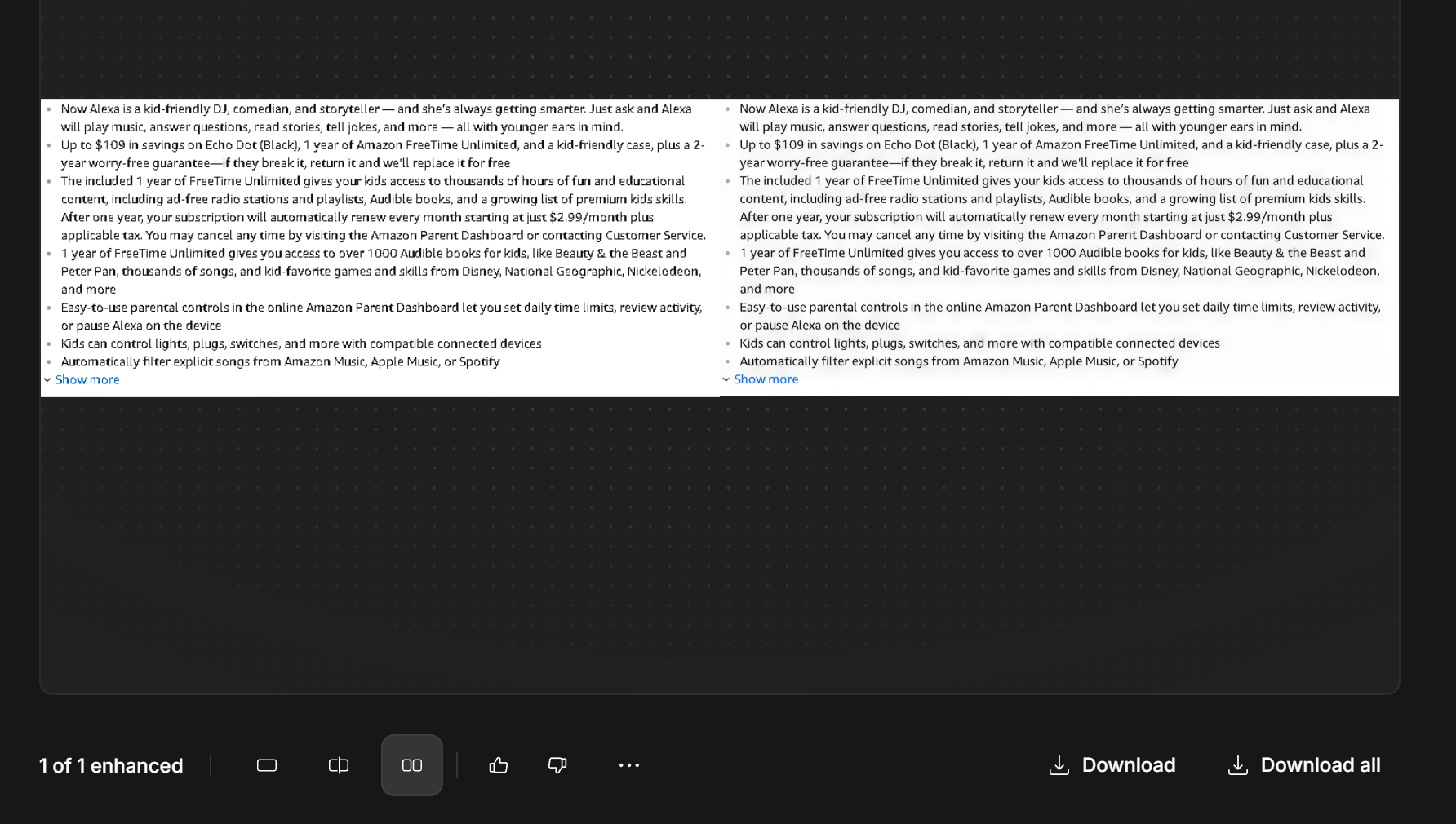
Most image upscaling tools are trained to reconstruct the kinds of detail found in natural photographs such as skin texture, foliage, and fabric. Text is structurally unlike any of these things. It consists of high-contrast, geometrically precise strokes and curves where even a small amount of distortion renders a character illegible. When a general-purpose upscaling model encounters text, it tends to treat letterform edges the same way it would treat any other edge in the image, smoothing and warping them until the result looks melted rather than sharp. Topaz Image Web takes a fundamentally different approach, using a dedicated AI text enhancement model that specifically recognizes and preserves text structures during enhancement, maintaining stroke integrity, edge sharpness, and character spacing so that text comes out crisp and legible at the output resolution.
What makes Topaz Image Web better at enhancing text in images?
Topaz Labs has spent over two decades building AI models specifically for image quality, and that depth of focus is what makes the difference. The Topaz AI Text Enhancer is powered by the all-new Wonder 3 model and is designed to handle both high-quality inputs and heavily degraded images with consistent performanc. It excels at recovering fine detail that standard upscaling models corrupt. It recognizes text, symbols, and logos as distinct visual elements and enhances them accurately rather than treating them as generic texture. The result is output where every character is sharp, every edge is clean, and every detail is preserved exactly as it should be. Topaz Labs has processed over two billion images to date, and the technology behind the platform has earned Emmy Award recognition and the trust of companies including Nike, Google, Adobe, and Nvidia.
Here's how to get started:
Step 1: Navigate to the Topaz AI Text Enhancer in Topaz Image Web
Head to the Topaz Image Web platform to begin. Once there, you will see the image enhancement interface with the AI Text Enhancer ready to use.
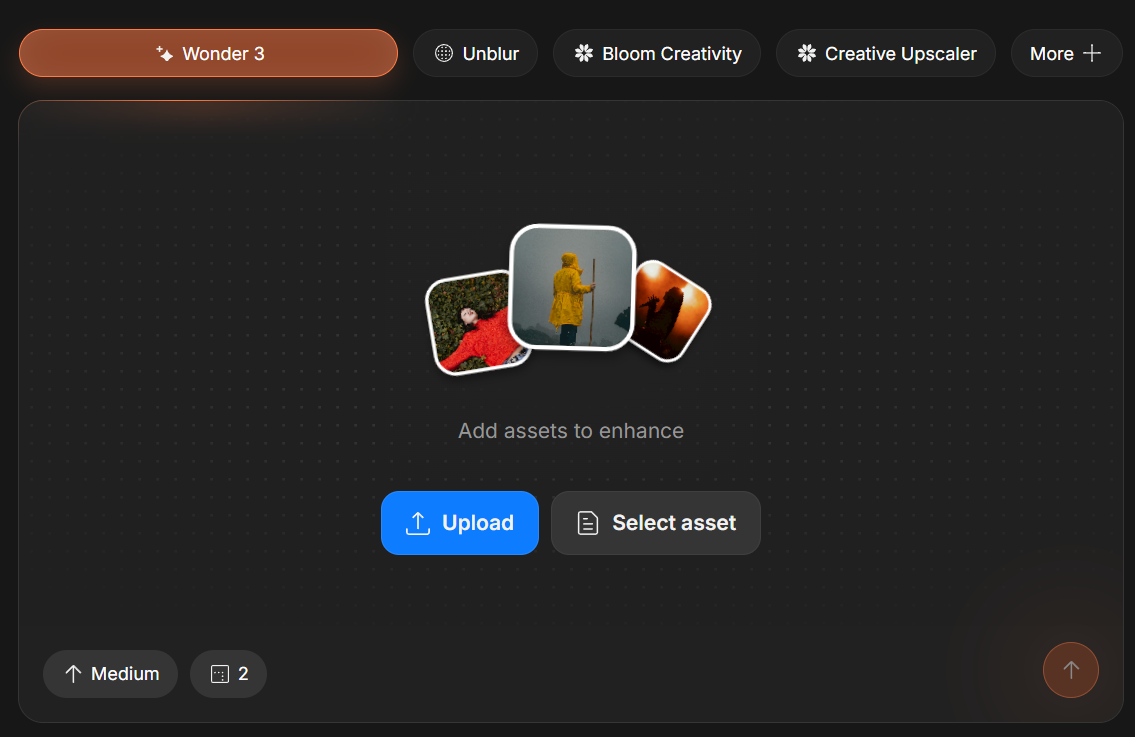
Make sure the AI Text Enhancer is selected as your enhancement model. Now you are ready to start enhancing text in your images.
Step 2: Upload your image
You can upload a single image or multiple images at once. Topaz Image Web handles both workflows efficiently.
Single image upload
- Click Upload Image or drag and drop your file directly onto the upload area.
- Supported formats include JPEG, PNG, WEBP, HEIC, and TIFF.
Please note that processed images will only output in PNG or JPG file formats.
Batch upload (multiple images)
If you have several images to process at once:
- Click Upload Images and select multiple files (use Shift+click or Cmd/Ctrl+click), or drag a group of files into the upload zone.
- Supported formats include JPEG, PNG, WEBP, HEIC, and TIFF.
💡 Tip: The clearer the text is in your original image, even if blurry or low resolution, the better the result. If your image has additional quality issues like heavy noise or focus blur alongside the text, consider running it through the Denoise or Unblur features in Topaz Image Web either before or after your text enhancement pass.
Step 3: Adjust your settings
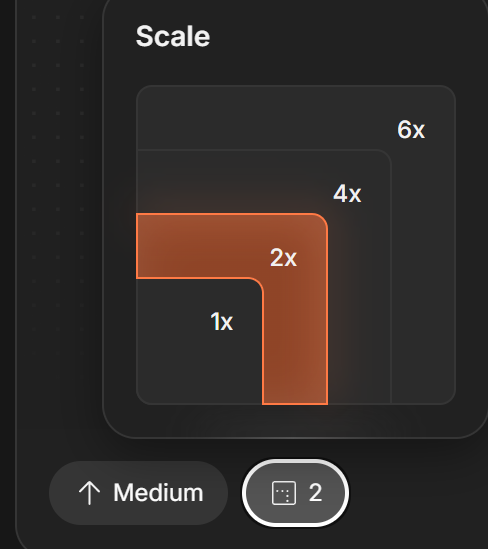
Once your image is uploaded, adjust the settings at the bottom of the screen before processing begins. The Wonder 3 enhancement model offers three enhancement levels so you can choose how aggressively the AI sharpens and reconstructs detail. You can also choose the level of image upscaling - from 1x (keep the same resolution) to 6x (up to 32 MP total image output)
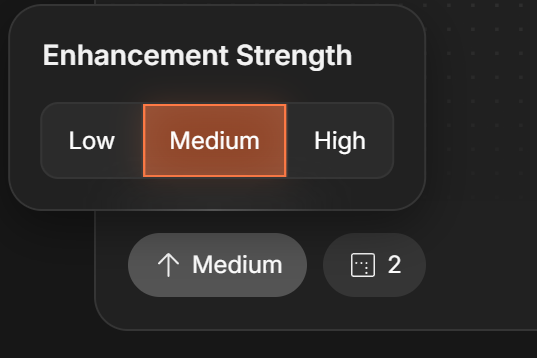
💡 Tip: If you are unsure which enhancement level to use, start with the default setting. For heavily degraded text or very low resolution images, a stronger enhancement level will typically deliver the best results.
Step 4: Process your image
Once you are satisfied with your settings, begin processing. Here is what is happening under the hood:
- Text and detail recognition: The Topaz AI Text Enhancer identifies text, logos, symbols, and other fine detail within the image as distinct structural elements rather than treating them as generic texture.
- Stroke and edge reconstruction: The AI reconstructs the precise edges and strokes of each character, recovering sharpness and legibility at the output resolution.
- Full image enhancement: Alongside the text, the enhancer sharpens, upscales, and denoises the rest of the image in a single pass, so the entire output is improved rather than just the text regions.
Processing time depends on image size and the number of files in your batch. Most single images process in under a minute.
Step 5: Download your image
After processing, review the result and download your enhanced image.
- Single image: Click the Download button below your image preview.
- Batch download: Click Download All to save all processed images as a ZIP file.
- All images are exported at full resolution with no watermarks, ready to use anywhere.
Learn more about enhancing text in images
What are common use cases for enhancing text in images?
The Topaz AI Text Enhancer is built for a wide range of workflows, including:
- Upscaling images that contain text: Enlarge screenshots, product images, infographics, and marketing assets without the letterforms becoming distorted or unreadable.
- Recovering low-resolution documents and scans: Restore legibility to old scanned documents, receipts, labels, and printed materials that have been photographed or digitized at low resolution.
- Fixing compressed web images: Recover sharpness in images that have been repeatedly downloaded, re-uploaded, or aggressively compressed, where text has become soft or blocky.
- Enhancing screenshots and UI captures: Sharpen text in screenshots of interfaces, dashboards, and applications for use in tutorials, documentation, or presentations.
- Improving signage and label photography: Fix images of signs, packaging, and branded materials where text detail has been lost to distance, low light, or soft focus.
- Preserving logos during upscaling: Ensure that logos and brand marks remain sharp and accurate when images are enlarged for print, display, or publishing.


