




Topaz Labs uses powerful AI to automatically detect and reconstruct the detail that pixelation destroys. Whether you are recovering a single cropped photo or restoring a batch of old, compressed, or degraded images, the process takes just a few clicks, right in your browser.
How fixing pixelated images works
Most tools that claim to fix pixelation work by applying a smoothing filter to blend the visible pixel blocks together. This gets rid of the blocky appearance but replaces it with a blurry one. The underlying problem is the same. What separates a genuine unpixelation tool from a basic filter is the ability to reconstruct detail that was not visible in the source, using an AI model trained to understand what images should look like at higher resolutions. Topaz Image Web's specialized AI models first detect and understand the structure of your image, then rebuild it pixel by pixel, removing pixelation, jagged edges, and other unwanted visual artifacts in the process.
What makes Topaz Labs better than others for fixing pixelated images?
The difference comes down to the quality of the underlying AI models and the depth of experience behind them. Topaz Labs has been building AI-powered image and video enhancement technology since 2001 and has processed over two billion images to date. That scale of real-world usage has shaped models that understand how images should look, not just how to mechanically fill in missing pixels. The technology has earned Emmy Award recognition and is trusted by 20 of the top 50 companies in the world, including Nike, Google, Adobe, and Nvidia, as well as millions of individual photographers and creators. The result is unpixelated output that looks natural rather than artificially processed, with genuine detail reconstruction that holds up at full resolution.
Here's how to get started:
Step 1: Navigate to Topaz Labs' online image platform
Head to the Topaz Image Web platform to begin. Once there, you will see the image enhancement interface.
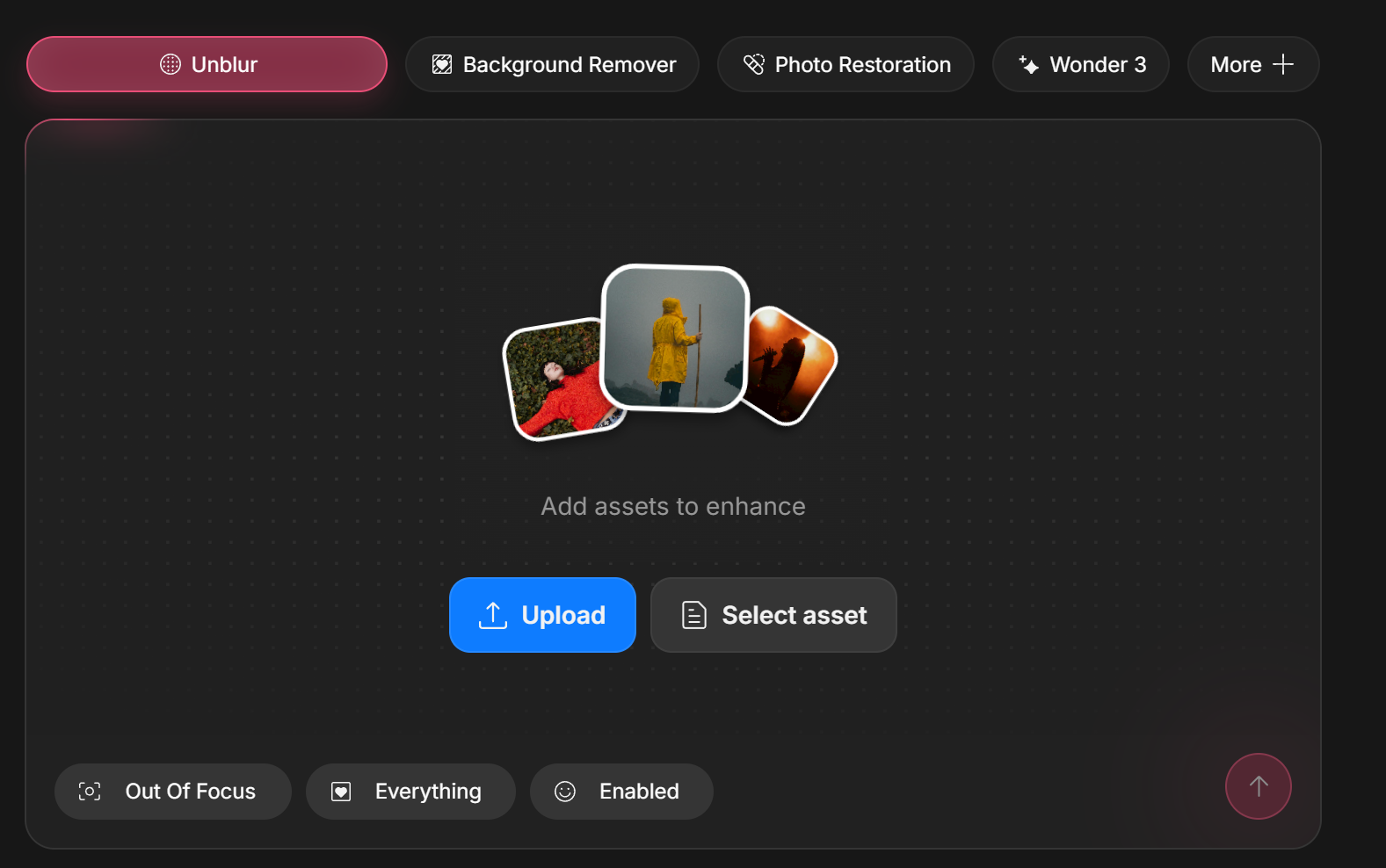
For images with pixelation, jagged edges, and other compression artifacts, use the Unblur option first. Now you are ready to start fixing your pixelated images.
Step 2: Upload your image
You can upload a single image or multiple images at once. Topaz Image Web handles both workflows efficiently.
Single image upload
- Click Upload Image or drag and drop your file directly onto the upload area.
- Supported formats include JPEG, PNG, WEBP, HEIC, and TIFF.
Batch upload (multiple images)
If you have several images to fix at once:
- Click Upload Images and select multiple files (use Shift+click or Cmd/Ctrl+click), or drag a group of files into the upload zone.
- Supported formats include JPEG, PNG, WEBP, HEIC, and TIFF.
💡 Tip: The more detail that exists in the original image, even if pixelated, the better the result. Very dark images or images that have been heavily compressed multiple times may produce more conservative output. If your image also has other quality issues like blur or noise, consider running it through the Sharpen or Denoise features in Topaz Image Web after unpixelating.
Step 3: Adjust your settings
Once your image is uploaded, adjust the settings at the bottom of the screen before processing begins. Topaz Image Web is designed to work automatically without manual selection or masking, but the settings panel lets you fine-tune the output to match your image type and desired result.
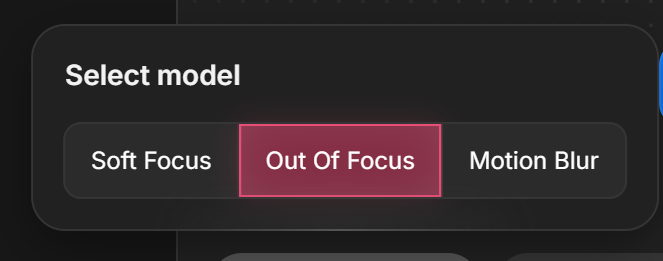
💡 Tip: If you are unsure which settings to use, start with the defaults. Use Face Recovery if there are human faces within the image.
Step 4: Process your image
Once you are satisfied with your settings, begin processing. Topaz Image Web's AI models get to work automatically. Here is what is happening under the hood:
- Artifact and pixelation detection: The AI identifies regions of the image affected by pixelation, compression artifacts, and jagged edges.
- Detail reconstruction: Using deep learning trained on millions of real-world images, the model synthesizes realistic texture, edge sharpness, and fine detail at the output resolution.
- Quality restoration: The reconstructed image is rendered with natural-looking clarity, not the blurry appearance that basic smoothing filters produce.
Processing time depends on image size and the number of files in your batch. Most single images process in a matter of seconds.
Step 5: Download your image
After processing, review the result and download your fixed image.
- Single image: Click the Download button below your image preview.
- Batch download: Click Download All to save all processed images as a ZIP file.
- All images are exported at full resolution with no watermarks, ready to use anywhere.
Try the unpixelate feature in Topaz Image Web now
What are common use cases for fixing pixelated images?
Topaz Image Web's unpixelate functionality is built for a wide range of workflows, including:
- Fixing pixelated and degraded images: Instantly remove pixelation, jagged lines, and visual artifacts from images that have been compressed, degraded, or created in suboptimal circumstances.
- Recovering highly compressed images: Restore quality in old, low-resolution, or repeatedly saved images where compression has stripped away fine detail.
- Recovering cropped photos: Fix images that have been cropped down to a small section of the original frame, where the remaining area is too low-resolution to use.
- Upscaling legacy content: Bring old family photos, scanned prints, or archival images up to a resolution suitable for print, display, or digital publishing.
- Improving screenshots and screen captures: Fix pixelated text, icons, and UI elements in images captured at low display resolutions.
- Marketing and product imagery: Recover quality in low-resolution assets that need to appear sharp on large displays, banners, or in print.


