






The Background Removal tool from Topaz Labs uses powerful AI to automatically detect and isolate the subjects in your photos—then cleanly remove everything behind them. Whether you're cleaning up a single portrait or batch-processing a full product catalog, the process takes just a few clicks.
How background removal in images works
Most background removal tools operate in the same general sense where the inherent AI model segments out the image in question, then identifies the image segments that make up the foreground subject(s) and background. Then, the tools is able to correctly identify the background and remove it while preserving the foreground. The differentiating factor in what makes certain background removal tools work better than others is how well these AI models are trained.
What makes the Topaz background remover better than others?
The Topaz Labs background removal tool has been specially trained on both publicly available datasets as well as internal datasets that aren't available anywhere else. In addition, our AI research team has utilized cutting-edge data pipeline and model training techniques that have resulted in one of the fastest and easiest to use photo editing tools available.
Here's how to start:
Step 1: Navigate to the background removal tool in Topaz Web
Head to the Topaz Web platform to get started. Once there, you'll see the interface:

Make sure the "Background Remover" option is selected. Now you're ready to begin removing backgrounds.
Step 2: Upload your image(s)
You can upload a single image or multiple images at once—the tool handles both workflows, but is especially good for batch processing!
Single image upload
- Click Upload Image or drag and drop your file directly onto the upload area.
- Supported formats include JPEG, PNG, WEBP, HEIC, and TIFF.
Batch upload (multiple images)
If you have several images to process, there's no need to do them one by one:
- Click Upload Images and select multiple files at once (use Shift+click or Cmd/Ctrl+click), or drag a group of files into the upload zone.
- Supported formats include JPEG, PNG, WEBP, HEIC, and TIFF.

💡 Tip: For best results, use images where the subject is clearly distinct from the background—good lighting and a reasonable amount of contrast go a long way. The AI handles complex edges like hair and fur well, but very low-contrast scenes may require a review after processing.
Step 3: Begin image processing
Right after you hit the orange Upload button, Topaz Web's AI models get to work automatically. You don't need to draw selections, set thresholds, or adjust any parameters—the AI handles all of it. You'll see a large progress indicator on the bottom left:
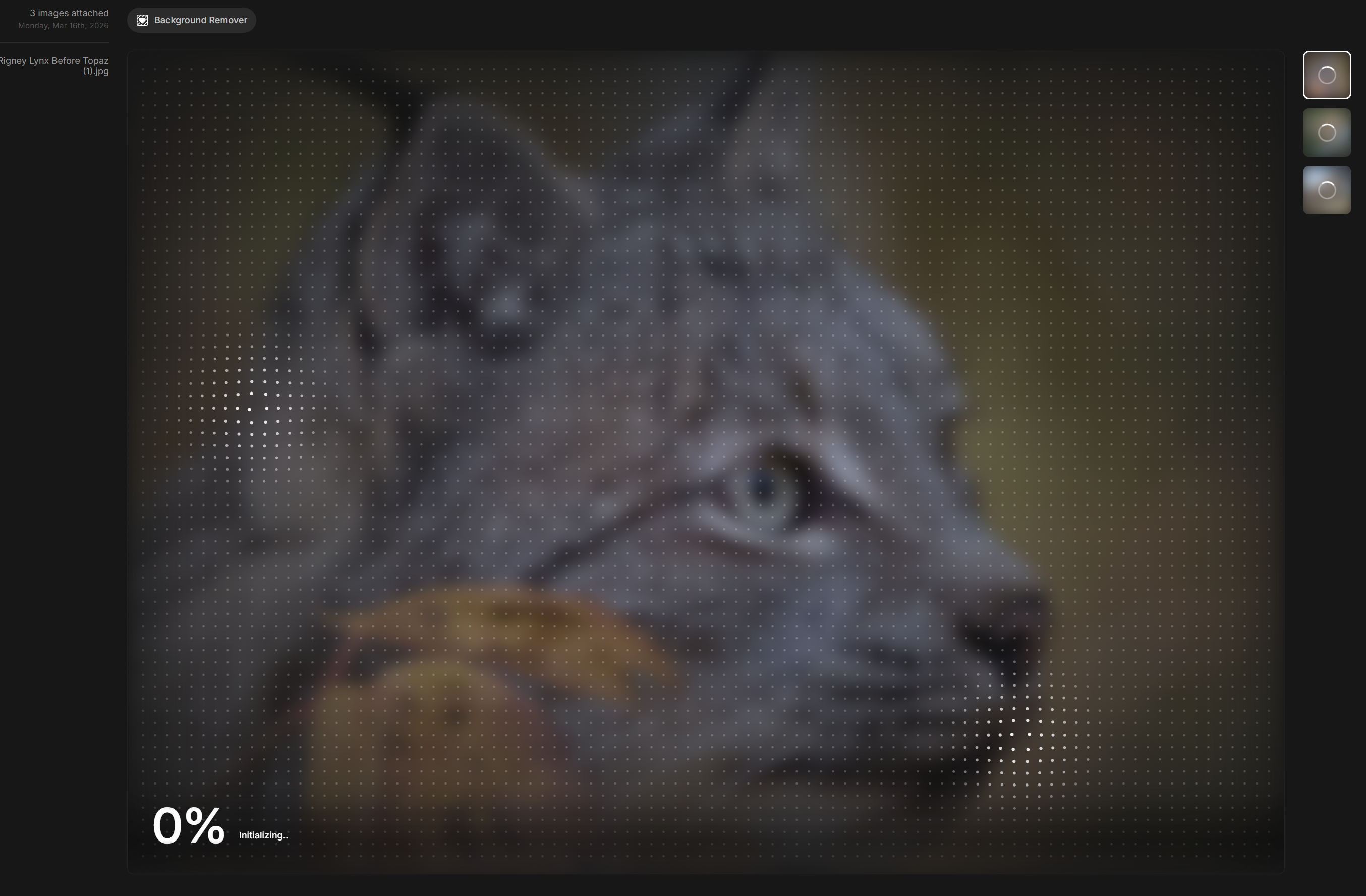
Here's what's happening under the hood:
- Subject detection: The AI model scans each image and identifies the foreground subject(s)—people, pets, products, objects, and more.
- Edge refinement: The model traces the boundary between subject and background with precision, including challenging areas like fine hair, fur, semi-transparent materials, and complex shapes.
- Background removal: The background pixels are removed and replaced with a transparent layer (alpha channel), giving you a clean cutout ready for any use case.
Processing time depends on image size and the number of files in your batch. In most cases, each image takes just a few seconds.
Step 4: View results
After processing, each image is shown with its background removed. You'll see your subject displayed against a plain dark background—this represents the transparent background area.
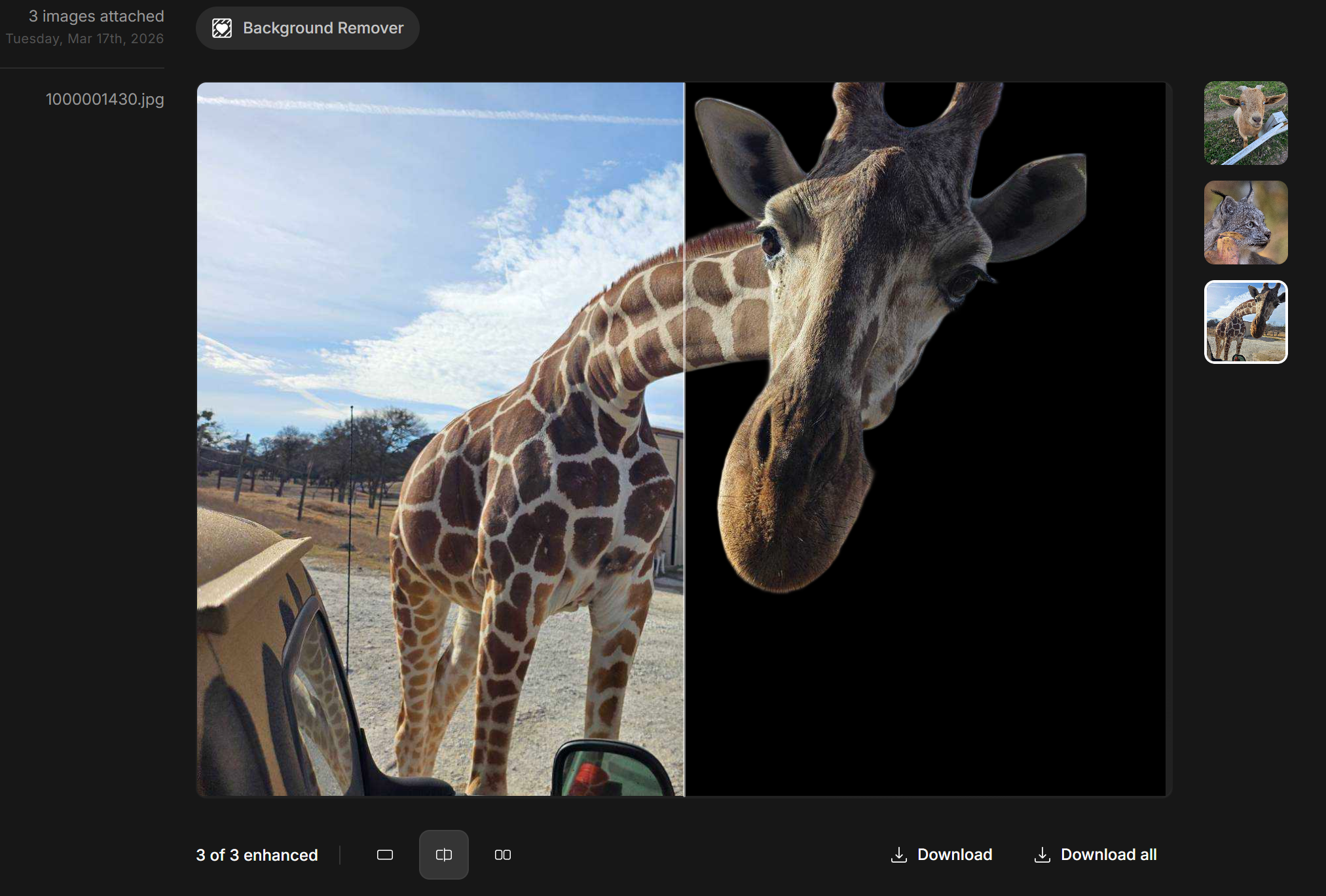
Take a moment to review the cutout quality:
- Check edges around hair, clothing, and fine detail areas.
- Zoom in on any areas where the subject meets a complex or similarly-colored background.
- Confirm the full subject has been preserved and no unwanted areas remain.
Step 5: Download your images
When you're satisfied with the results, download your processed images:
- Single image: Click the Download button below your image preview.
- Batch download: Click Download All to save all processed images as a ZIP file.
- All images are exported as PNG files, which preserves the transparent background for use in design tools, e-commerce platforms, presentations, and more.
Try the Topaz background remover tool now
What are common use cases for background removal?
Background Removal in Topaz Web is built for a wide range of workflows, including:
- E-commerce product photography — create clean, white or transparent background shots at scale, making your product assets go further.
- Portraits and headshots — isolate subjects for professional or creative compositing on different backgrounds.
- Marketing and social media assets — quickly prepare cutout images for ads, banners, and posts.
- Graphic design — layer subjects onto custom backgrounds in any design tool.
- Photo editing workflows — remove distracting backgrounds before further editing in Topaz Photo or other apps.


