







Topaz Labs solves your slow-motion video needs through AI-powered frame interpolation. Instead of simply stretching your existing frames (which causes the stuttering and smearing you see in basic slow motion), our AI model generates brand-new frames that blend seamlessly with your original footage — so the motion stays smooth at any speed reduction.
Slow motion is one of the most powerful tools in any video editor's toolkit. Any footage that passes in a fraction of a second at normal speed can become a genuinely cinematic moment when slowed down. The challenge has always been doing it without the result looking choppy, blurry, or artificial.
How It Works: Frame Interpolation vs. Standard Slow Motion
It's worth understanding why AI-based slow motion looks fundamentally different from what you get out of a standard video program.
When most software slows down video, it duplicates existing frames or blends adjacent ones together — essentially spreading the same information over more time. The result is motion that can look smeared or stuttery, especially at slower speeds or during fast-moving action.
Topaz Labs uses advanced frame interpolation technology powered by specialized AI models to add slow motion effects to any video, and the additional frames generated are indistinguishable from the original video frames. The AI analyzes the motion between existing frames, predicts what should exist in the gaps, and synthesizes new frames that accurately represent how the subject would have looked at that point in time. The result is slow motion that feels like it was captured by a high-frame-rate camera — not stretched in post. Here's how to start taking advantage of this high-quality slow motion technique right in your browser.
Step 1: Go to the online video enhancement app
- Navigate to our online video enhancer app. If you haven't already, sign up for a Topaz account, or login to your existing one.
- You'll arrive at the project workspace where you can upload your video and configure your enhancement settings.

No software download or installation required — the tool works right in your browser, with no need for specialized hardware. Cloud-based processing takes care of everything for you.
Step 2: Upload Your Video
- Click Upload or drag and drop your video file into the upload area.
- Most common video formats are supported. MP4 (H.264 or H.265) is the most reliable choice if you're unsure.
- Once uploaded, your video will load into the project timeline and you'll be ready to apply settings. Note the "Frame Interpolation" dropdown on the bottom left of the screen below:
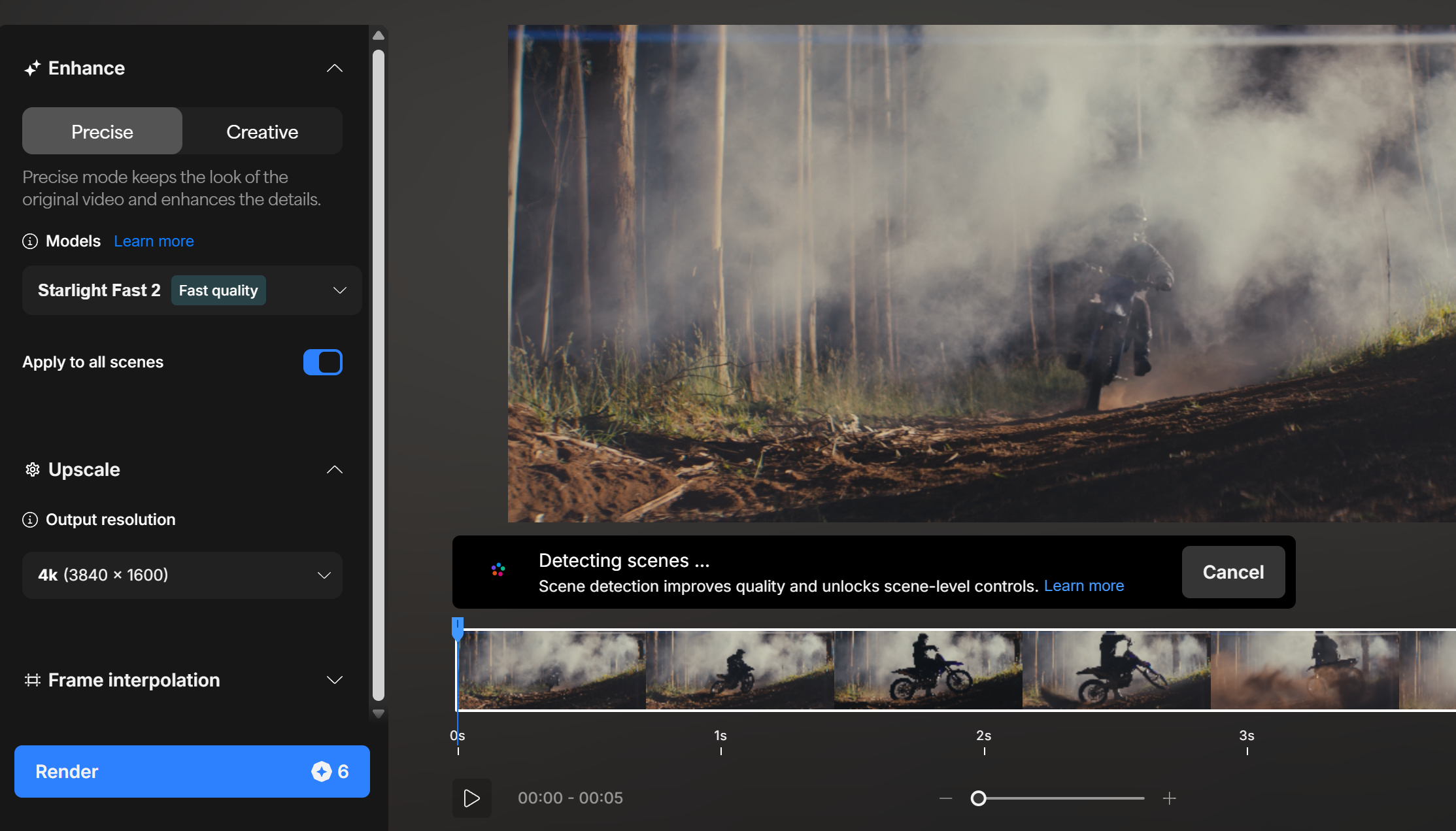
💡 Tip: The tool works on any video, but footage with clear, well-lit motion tends to produce the cleanest slow motion. Fast action, sports, nature, and movement-heavy clips benefit the most from AI frame interpolation and slow motion.
Step 3: Toggle Frame Interpolation and Set Your Slow Motion Factor
This is where the magic happens:
- In the settings panel on the left, locate and open the Frame Interpolation section.
- Click the Slow Motion dropdown to reveal the available speed reduction options.
- Choose your desired slow motion factor. Slow motion factors available range from 2x up to 16x where the higher the number, the stronger the slow motion will be.
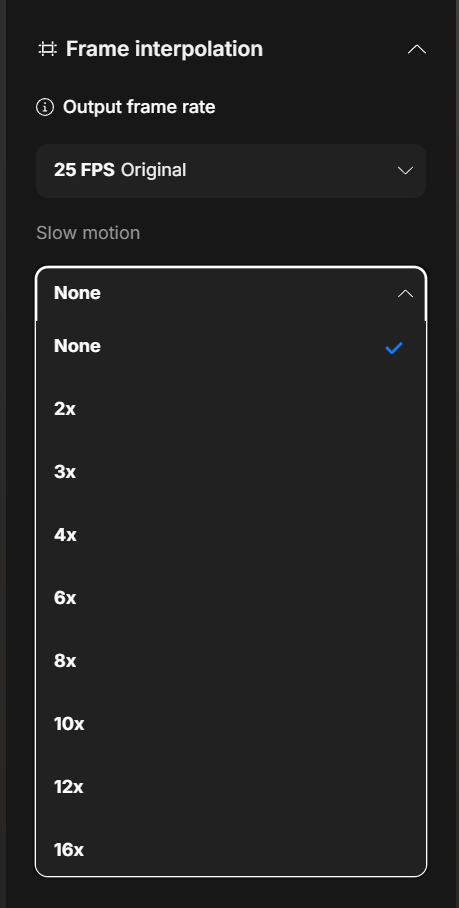
How to choose the right factor:
- 2x — Subtle slow motion. Good for adding some weight and drama to everyday footage without it feeling too stylized.
- 4x — More noticeable slow motion. Great for action sequences, sports highlights, or anything with fast movement you want viewers to study.
- Higher factors — Maximum cinematic effect. Best suited for footage originally shot at higher frame rates, or for creative sequences where extreme slow motion is the intent. Feel free to experiment.
As a general rule, the more motion your original clip contains, the more dramatic and effective higher slow motion factors will be.
Step 4: Process Your Video
Once you're happy with the preview:
- Click Process to begin the full export.
- Processing runs entirely in the cloud, so there's no burden on your local machine — you can switch tabs or step away while it runs.
- A progress indicator will show you where things stand. Processing time varies based on video length, resolution, and the slow motion factor selected.

Step 5: Download Your Slow Motion Video
- When processing is complete, the download button will become active.
- Click the white download button located at the bottom right corner to save your video.
- Your finished slow motion video is saved and ready for editing, posting, or sharing.
Creative Uses for Slow Motion
Here are some of the most effective ways to use slow motion in videos:
Sports and action footage — reveal form, technique, and movement that's invisible at normal speed. A golf swing, a skateboard trick, or a sprinter's stride becomes a study in motion.
Nature and wildlife — birds taking flight, water in motion, animals mid-stride. Slow motion gives viewers time to experience moments that are typically too fast to appreciate.
Narrative film and video production — slow motion draws emotional weight into a moment. A glance, a collision, a reaction — decelerating the action tells the audience to pay attention.
Product and brand content — products in motion look more polished and premium at slower speeds. Liquids pouring, fabrics flowing, and textures catching light all benefit from deceleration.
Cinematic B-roll — even simple scenes like a crowd walking or leaves in wind become compelling background footage when slowed down.


